Remote Work Life: How to Deal With Power Interferences

Remote Work Life: How to Deal With Power Interferences

Laptops, smartphones, tablets, and PC have already been part of our everyday lives and these gadgets run on power. As a remote worker or virtual assistant, you may use all the aforementioned devices, but among your top choices would be desktop PCs. These are known for durability despite long hours of usage, convenience of use, and efficiency of operation. PCs rely on a consistent stream of power to stay on, but sometimes, your main supply may not be so dependable. In areas prone to electricity interferences, damaging a PC is likely.

To understand more about power interferences, here are its different types:

  • Blackout. This normally takes place due to uncontrollable factors, such as electrical lines damage and disruption in the power station.
  • Power outage. This is an interference that occurs during the summer commonly. With extreme temperatures and high demand for power, it is anticipated that electrical equipment may fail.
  • Power surge. This occurrence is characterized by electrical draw changes and interruptions. One good example that could cause this is whenever your home equipment or appliances share the same power supply.
  • Brownout. This is observed when power does not black out completely, which explains the name itself. There is simply a temporal drop in electrical voltage.

If you work from home, you would have certainly experienced an instance wherein a power interference occurred while your PC is turned on. Take note that this does not imply all is well simply by powering your workspace back.  A sudden loss of power in your PC could result in hard disk damage.

Should the said instance happen, it is best to run a system check when your PC completes a system start. Here are the steps you need to follow:

  1. Tap the Search button on the taskbar.
  2. Type cmd in the search box.
  3. Choose Command Prompt on the top.
  4. Select Run as Administrator.
  5. Type chkdsk to perform a hard disk check.
  6. When completed successfully, you would see whether there are problems found or the outage has not affected your hard disk.

In the instance of detected problems, Windows will prompt and automatically fix the issues. There will be an auto repair upon restart of the PC.

Otherwise, you would see the message, Windows has scanned the file system and found no problems. No further action is required.

There is an old saying that prevention is better than cure, so here are solutions to keep your PC from being damaged by power interferences:

  • Surge Protectors. These devices are used to keep your gadgets, such as a computer, from unanticipated blackouts. By simply plugging your workspace into these protectors, you would be able to change the direction of excess power to the ground wire of outlets.
  • UPS Devices. UPS stands for uninterrupted power source, which is a device that can protect your devices from all power interferences. What makes it more reliable is its additional five to sixty minutes of power in combination with the surge protectors’ functions. It gives your desktop PC a battery backup, providing you ample time to save your work and avoid sudden computer shutdown, in the instance of power interference.
  • Data Backup. One of the biggest risks of power interference with your computer is data loss. In order to prevent your work from getting lost, make it a habit to back up your files regularly. Apart from relying on your local system for file backup, it is also best to utilize cloud storage solutions. These allow you to save your data remotely via the internet. Even if you experience power interferences, cloud storage applications often save your work and corresponding changes in real-time. Hence, there is a higher chance for your backup to exist even if you fail to save your activity manually before your PC shuts down.

Dealing with power interferences should be done seriously if you are a remote worker or a virtual assistant. Losing your data could lead to missed deadlines and poor productivity, which are big factors that determine your work performance. With you being totally reliant on the internet and power during work, protecting yourself from associated problems with them should be among your priorities.

Four Free Antivirus Applications Every Virtual Assistant Should Consider

Four Free Antivirus Applications Every Virtual Assistant Should Consider

Virtual assistance is providing professional administrative or technical assistance to clients remotely from a home office via the internet. As it is connected to the web, workplaces can be vulnerable to computer viruses and with the given fact, these should be protected from the said threats.

An unprotected computer is like an open door for computer viruses. Computer viruses are designed to replicate tenaciously, infect your programs and files, alter the way your computer operates, and even stop it from working altogether. Antivirus software prevents and protects your computer from these viruses by detecting and controlling it from spreading further into your computer system.

Antivirus software typically runs as a background process. It scans computers, servers, or mobile devices to detect and restrict the spread of malware. Many antivirus software programs include real-time threat detection and protection to guard against potential vulnerabilities as they happen. Moreover, these applications also include system scans that monitor device and system files to look for possible risks.

To give you options to consider, here are a few highly known free antiviruses that provide excellent and decent protection for your system’s needs:

Windows Defender. Believe it or not, but your computer device with Windows 10 comes preinstalled with it. It provides ample protection from viruses and installed with Windows by default, so even if you do not want to install a third-party solution, your system has at least some level of protection against threats. Furthermore, it detects other antivirus systems you may have installed. Therefore, Windows Defender removes any old scanners if you want to entrust it as your PC’s sole protection against online threats.

Kaspersky Security Cloud (Free). Kaspersky Security Cloud Free offers Kaspersky’s basic world-renowned cybersecurity software, which scans for malware, performs system clean-ups, and uses active scanning to prevent new threats. Moreover, it also provides complete privacy protection with a VPN, a password manager, and dark web scanning. Although Kaspersky Security Cloud Free does not offer some of the frills and bonus features available in the commercial version, there is nothing minimal with this version as it offers all of Kaspersky’s malware-fighting technology at no cost.

Bitdefender Free Edition. Bitdefender’s Free Edition is an antivirus scanner that users do not need to set further after the installation as it is designed to run in the background, with only important notifications in case of apprehensive program activity. Its minimal design will not slow your PC down at all and the built-in malware scanner is one of the strongest on the market. Basically, its Advanced Protection feature extends to ransomware detection so any suspicious behavior on your PC will get frozen immediately.

Panda Dome (Panda Free Antivirus). Panda Free Antivirus provides real-time antivirus, antispyware, behavioral analysis protection, process monitor, and URL and web filtering. It is a powerful and easy-to-use antivirus, offering 100% free protection. It is one of the most intuitive antivirus programs out there with no advanced setup required. The firewall feature is also quite powerful, blocking more intrusions than any other free antivirus applications can, including the built-in Windows firewall. 

It is entirely your preference which of the provided antiviruses is most considerable for you. After all, they all have a good record of providing threat protection. Just be reminded that it is best not to disregard the perks offered by these free antiviruses. Else, you may face more challenges and expenses with a virus-attacked PC.

Manage Your Windows 10 Updates the Smart Way

Manage Your Windows 10 Updates the Smart Way

It may be irritating at times to find constant update notifications, but updates are essential to ensure your system’s smooth performance and functions. Without managing the said updates, you would find yourself in trouble for having a very slow system performance during your remote work shift. The worst scenario is that you would stumble upon automatic updates, which take time to finish. This could lead to late reporting, missed deadlines, delayed completion of tasks, and poor productivity among others.

Windows updates include security updates and are the worst possible errors – as they may be exploited by malware or hackers. Other updates address other bugs and issues in Windows. Although these are not responsible for security vulnerabilities, these might impact the stability of your Operating System. Windows updates also sometimes come with new features, while patching some known issues.

Oftentimes, these Windows updates, if not set properly, automatically update itself via shutdown or automatic restart without warning. Therefore, these halt system usage or even interrupt the user’s time since it takes roughly 10 to 20 minutes for some updates to finish installation.

If you want to somehow control how these updates behave, try following the steps below:

Make sure your PC is always updated.

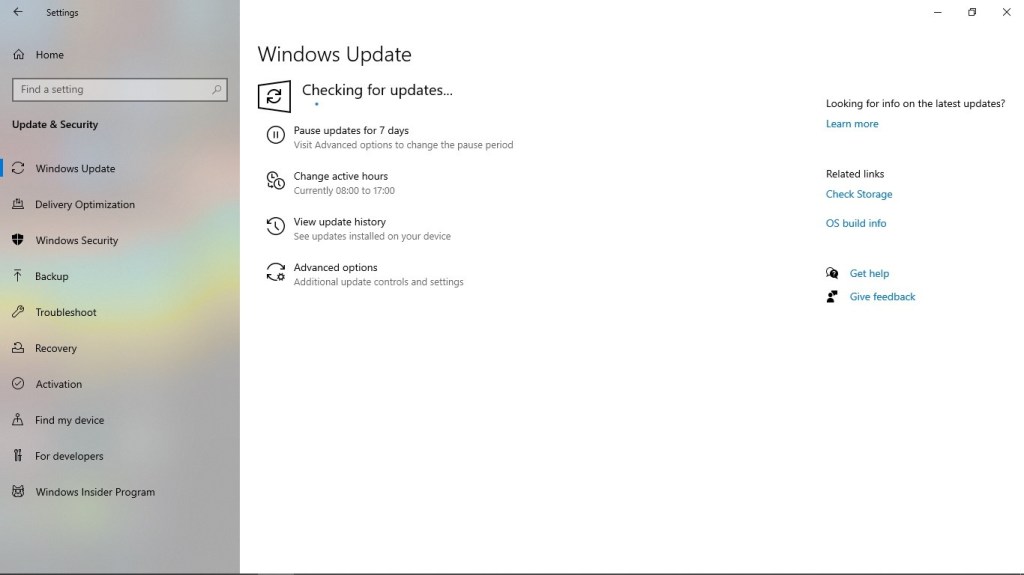
To do this, go to Settings > Update & Security > Windows Update. You can see in this section if there are updates available or are currently pending.

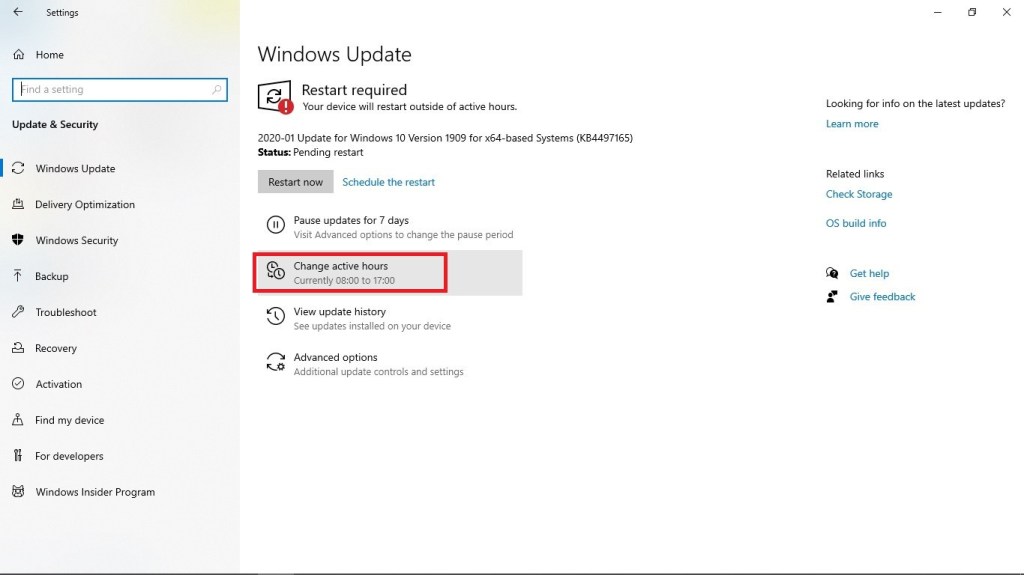
Set active times to prevent an update from installing and restarting your PC automatically while the system is in peak usage.

To do this, click on Change active hours.

Once done, set your convenient active hours. Keep in mind that these hours are the hours that you and your system are not to be disturbed.

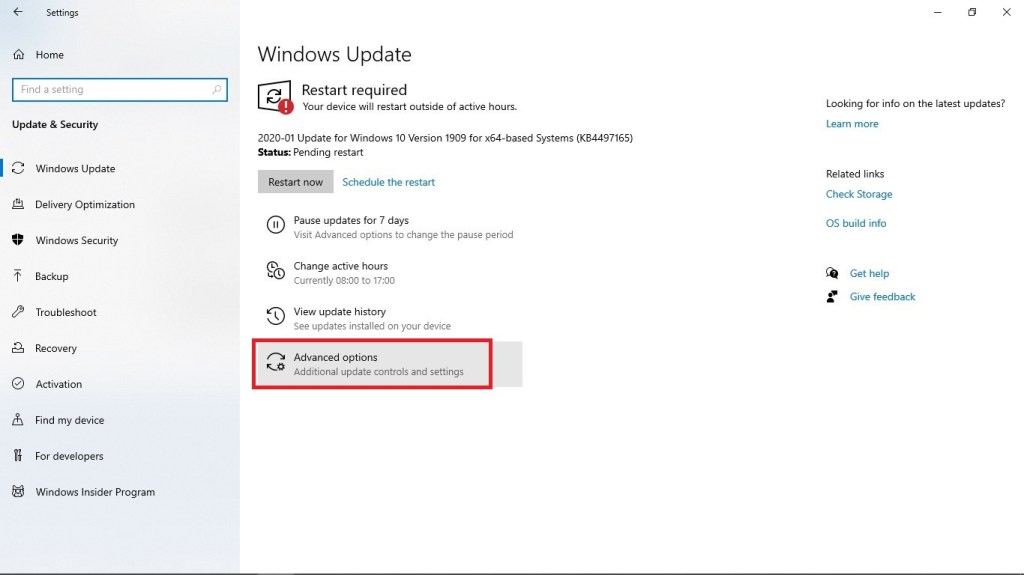
Set additional customization of updates.

Go to Advanced options.

In Advanced options, turn off Restart this device as soon as possible when a restart is required to install an update. Windows will display a notice before the restart, and the device must be on and plugged in., to gain control on when to restart your system.

Schedule a restart at a later time. Normally, when an update is completed, you would see a Restart required prompt.

Just click on Schedule the restart.

Enable Schedule a time and set your desired restart time.

Simply follow the aforementioned steps and you would no longer have to worry about constant update notifications or disrupting automatic updates. Be reminded that the condition of your workspace determines your remote work experience and performance. Hence, be sure to keep it managed effectively.

Three Basic Tips to Speed Up Web Browsing

Three Basic Tips to Speed Up Web Browsing

The internet is now an integral part of our daily lives. Web browsing has become a daily habit for some and for a virtual assistant, a crucial part of work. Therefore, speeding up a browser is a must.

Apart from software applications that can be accessed offline, clients now utilize web applications to make coordination with their remote staff seamless. Simply imagine being able to work on the same documents and apply changes with your team members simultaneously. Furthermore, web-based applications are often opted since one could access them not only through your laptops or PCs, but on your mobile phones, as well. This gives anyone the convenience to create, edit, or check their work anytime and anywhere.

There are a number of ways to speed up browsing. Some of these tips are the basic ones to keep track of, such as the following:

Keep your web browser updated. The big four browsers (Chrome, Edge, Firefox and Safari) release updates at an average tempo of 40 days and some less than that. Hence, a quick software update every now and then could do wonders in your web browsing experience.

Block third-party cookies. In some ways, cookies make browsing faster and easier since these allow websites to determine who you are and tailor your browsing experience based on your previous visits. However, you have to make sure to block third-party cookies as they monitor you across multiple sites and link those actions together. You will find an option to block these cookies in every browser’s setting panel.

Remove unused extensions. As too many unneeded apps eventually slow down your computer, too many extensions and add-ons can do the same to your browser. These can take up system resources and can cause bugs and crashes. Choose those that are beneficial to you, and you might be surprised by how many extensions you can live without.

The aforementioned tips are just some to keep in mind and put into practice. Remember, in this era of the internet and remote work, speed is key and to adapt is practical.

Maintaining Seamless Internet Connectivity for Work Efficiency

Maintaining Seamless Internet Connectivity With Just One, Quick Trick

Time is gold, and in the world of virtual assistance, it is of the essence. Every aspect of your duty as a virtual assistant is synonymous with urgency. We are after all in the digital age not just in technology but in certain facet, our way of life.

Attributes such as swift decision-making and immediate action to the tasks at hand for the VA require an equivalent gadget to help manifest that into reality.

PCs, laptops, and even smartphones are essential for the VA and in accordance with that, speedy internet connectivity to these devices is tantamount. If you do not have the necessary resources, you would likely end up not being able to maintain your remote work, worse, not even obtain one. Clients nowadays consider a stable and fast internet connectivity a MUST whenever qualifying a virtual assistant.

WIFI routers and modems providing internet have now been intertwined with our everyday life and much like humans, in order for it to function well, it needs a timeout.

WIFI routers do not just handle one device at a time, there can be more than five in a household and that increases the demand on the network load. An average WIFI router has a less than 1GB of onboard memory and can get hung up on download requests, but a quick reboot can clear that away. Just turn off your WIFI router power for a 10 seconds timeout. During which when you power you WIFI router back on, it will find WIFI channels with less traffic and therefore raise their performance speed.

Interweave a fast internet connection to your quick decision making and tasks will be done in a jiffy. Nowadays, the world is moving in such a fast pace and the phrase time is gold moves along with it.