Five Advantages You Can Reap by Updating Your Workspace Regularly

Five Advantages You Can Reap by Updating Your Workspace Regularly

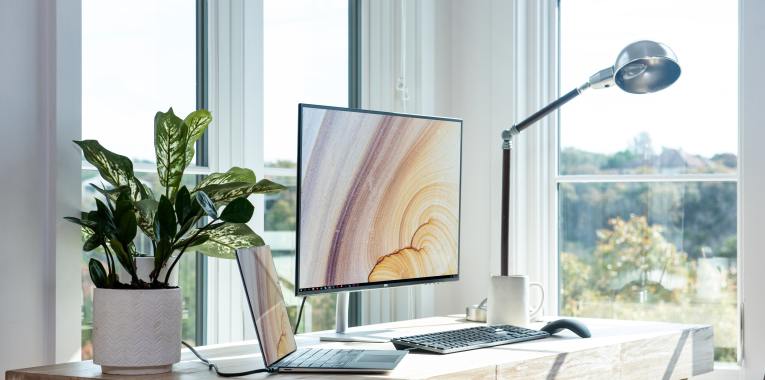
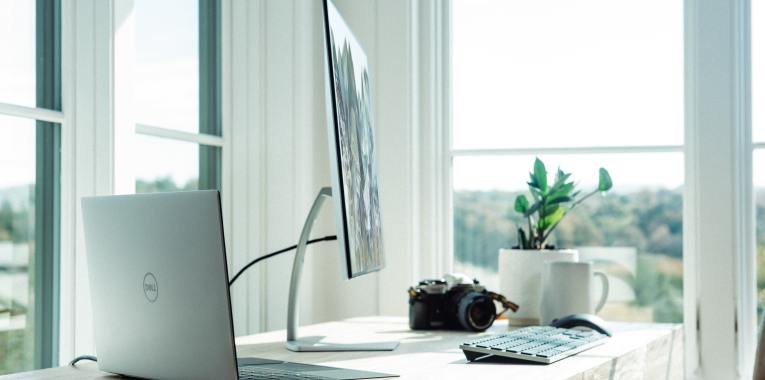
Working remotely requires making certain that your resources are up-to-date and free from problems. These include your desktop computer or laptop, which is your main tool to carry out your tasks. At this time, from the operating system up to the applications you use, updates are always required. 

If you are among those, who are against updating their computer or laptop regularly due to the time it consumes, you should think again. To make it easier for you to understand, here are the benefits you can reap by not shrugging off your unit’s updates:

Better Security. Updates prompted by your operating system or software applications are necessary to prevent the latest security vulnerabilities. Hence, if you give enough regard to this, you will prevent failure of operating your unit or software application.

If your computer is exposed to viruses, you will definitely spend more time fixing the issue compared to the time you have wanted to save by avoiding the updates.

More Stability. If you want to ensure that the OS or software application’s performance is maintained, either in terms of quality or speed, you need to update them regularly. The updates are meant to improve their functions and features continually.

Improved Utilization. You can fully utilize the capabilities of the hardware devices or tools in which the OS or software application is integrated to by updating. This will, in turn, provide quality processes all throughout your use of your PC or laptop.

One good example is the update provided by Zoom, a video conferencing application utilizing the graphics card of your PC or laptop. At present, with their updated application, there is already an option for blurred background without the need of a green screen. This feature makes it easier for people to avoid virtual backgrounds without losing a hint of professionalism while in meetings.

Lessened Bugs. An OS or software application may crash or become faulty due to bugs that are recurrently being debugged by developers. If you consider updating your workspace, the errors you encounter commonly will be corrected. Improvements and fixes that are meant for users’ needs, which include yours, would be applied accordingly.

Enhanced User Interface. Without updating, you would have to use the same old user interface that may not be as friendly as the new one. If you want to use an application much more easily and without speed issues, you may have to update your application sooner or later. 

The pros of updating your PC or laptop as mentioned above show that it is always advisable to assent to modern technology developments. Without doing so, you will not be able to get the most out of your workspace’s functionalities, which is of great consequence in carrying out your job. The better the performance of your PC or laptop is, the higher your productivity would be.

Learn More About the Big Blue Sad Face Smiley Error Screen

Learn More About the Big Blue Sad Face Smiley Error Screen

As prominent as the Windows Operating System through the years has been, every computer user would likely encounter the Blue Screen of Death, BSOD, or to put it in a non-violent phrase: the big blue sad face smiley error screen.

As humans, we tend to change emotions in an instance, so does this error screen that appears in the most unexpected of times. It causes panic, anxiety, and oftentimes anger towards this blue screen of despair. However, fret not, since there are solutions to solve the issues caused by it.

Find out more about the common causes of BSOD and their corresponding solutions by reading these points:

Faulty Memory. The error screen can be caused by faulty memory on the device, be it the Random-Access Memory (RAM) or the disk space on your hard drive. Check if the RAM is in good condition and also free up disk space on your hard drive. Before upgrading or adding RAM on your device, be aware of the kind of RAM capacity and type it caters to. If two RAMs of different types or speed are installed together, this error will appear.

Device Installations. If you have recently installed a new software, hardware, or custom downloaded drivers, this error may be encountered. This could also occur following a slight change in your PC settings.

  • Software. Try to reinstall the software and if the error reoccurs, check for the developer’s support information. Odds are, they have encountered it before and have a well-documented walkthrough solution.
  • Hardware. Update the hardware firmware, if available. Check if the hardware you have installed is compatible with your Windows version. Moreover, check if the hardware at hand is not a factory defect or just get it replaced.

Always be wary of what you put into your device at all times to prevent BSOD.

Outdated Device Drivers or OS. You can download the latest hardware drivers for your PC at your convenience to keep BSOD at bay. We all know that Microsoft, on a regular basis, releases patches, service packs and system updates. All you need to do is apply the available updates.

If you believe that the aforementioned solutions did not work to solve BSOD, given below are additional steps you could follow:

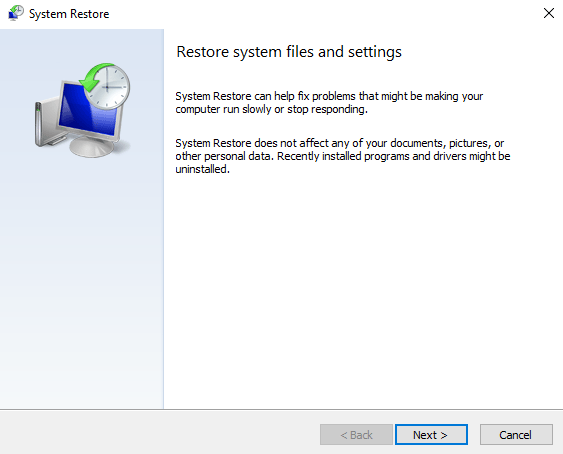
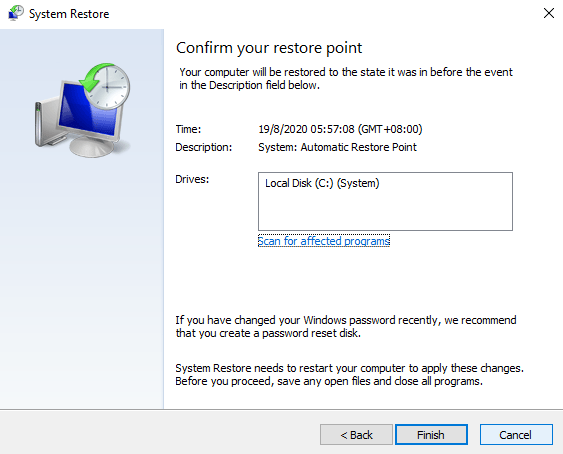
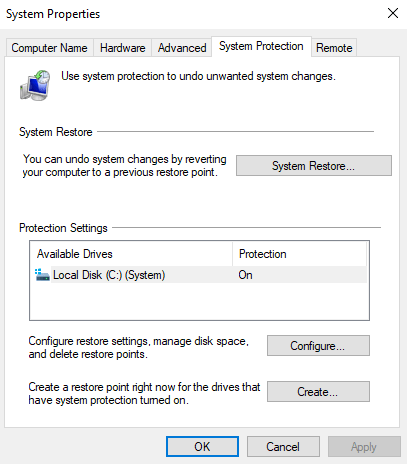
System Restore. A system restore is a feature that allows the user to revert their computer’s state at a point in time where the system was error-free. It does not affect personal files, changes in documents, and new files while it reverses system changes. To do a system restore:

  1. Open Start.
  2. Type “create a restore point” on the search box.
  3. Click the top result to open System Properties.
  4. Click on System Restore.

5. Click Next.

6. Select the restore point you want to use on your computer and click Next.

7. Click the Finish button.

Reinstall Windows. This is the last resort if none of the solutions above worked. Reinstalling a clean Windows operating system removes all the system software and drivers, and resets all settings.

Coming across BSOD does not mean that your computer is marked as dead and useless. Instead, it is simply a notification message from Windows that there is a serious problem that needs your attention prior to using your computer normally. Instead of a frown, turn that sad face of yours upside down. Solutions are at hand now.

Desktop vs Laptop: Find Out Which One Is Best for Your Remote Work

Every one of us has different perceptions when it comes to working from home or doing remote work. Would it be wise to spend a lot to establish a work from home setup? Would your workstation be one that can be carried wherever and whenever you go? Would your PC be one that is based on performance over quality? To put it simply, for most of us, the question always stems out of whether to buy a desktop or a laptop.

To help you decide, given below are criteria to take into consideration when setting up your home office, which will also differentiate a desktop from a laptop consequently:

Budget-friendliness. A desktop’s price comes in as cheaper option compared to that of a laptop. Laptops cost more to manufacture, produce, and incorporate. Simply imagine the already medium-sized computer parts being assembled into an even smaller and more compact portable device.

Portability. The very design of a laptop screams and oozes portability. On the other hand, desktop can also be moved from one place to another (apparently requiring your cardio and strength conditioning), but is generally designed to be in one location. If you are a digital nomad, it is undeniable that you would opt for a laptop. In contrary, being a stay-at-home freelancer may make desktop more suitable for you.

Upgradability. Normally, laptops are boxed components that are not 100% upgradable. You are fortunate if you could upgrade both the storage and its random-access memory (RAM). But then, desktop components can be upgraded if so pleased and can go with the flow of the ever-moving technological advancements.  If you know how to tinker with a desktop, you can technically change all its components.

Power Consumption. A desktop needs more power to operate as its unit and monitor display need separate power supplies. Alternatively, a laptop, which has an independent power in a form of a battery pack, can go hours without being plugged into a power source. Power fluctuations will render the desktop vulnerable as unsaved work will be lost.

Performance and Repair. Due to the nature of a laptop being a minimized version of a desktop, the desktop processors tend to be more powerful than that of a laptop. Although there is no science to explain it, laptops tend to slow down over time compared to a desktop. Also, laptops have a limited space in its bezel, so adding another internal drive is not possible. However, one can completely replace the internal drive with one that has more storage. Laptops are also difficult to open if it needs servicing compared to a desktop that has its components easily accessible.

Bear in mind that the given points are simply guidelines. Every remote worker has his or her own preference in terms of budget, convenience, efficiency, and maintenance relative to their workstation. Make a decision by considering your current situation, what you mostly need with your remote work, and the future issues that you may encounter regardless of the unit you decide to buy.

Specifications to Consider When Buying a PC for Remote Work

Specifications to Consider When Buying a PC for Remote Work

Success in remote work is not reliant on your work performance alone. Take note that you would not be able to deliver high quality output without the help of your PC. Your computer is what enables you to communicate and coordinate with your clients. Furthermore, all of the applications required to carry out your work are accessible through it. Hence, it is undeniable that your PC is a critical component of your virtual work.

In choosing a computer, you must consider the usual activities you handle as a virtual assistant. That being said, the following categorized specifications would help:

For Administrative Tasks

Examples of administrative tasks are data entry, calendar management, e-mail management, and documents management among others. For effective execution of the said activities, your PC specifications should not be less than the following:

  • Intel Core i3 or AMD Ryzen 3
  • 500GB to 1TB hard drive or 128GB SSD
  • 4GB to 8GB RAM
  • Built-in Graphics Card or Dedicated Graphics
  • Full HD (1080p) screen

Note: Intel Celeron, Pentium and Atom, and AMD A-series and Athlon are less powerful than Core i and Ryzen chips.

For Non-Administrative Tasks

Non-administrative tasks include technical work, such as website development and graphic design. You could say that these activities require more advanced PC to use. Relatively, the following specifications are ideal to consider:

  • Intel Core i5 and i7 or Ryzen 7 and 9 (AMD)
  • 256GB to 512GB SSD or combination of SSD and mechanical hard drive
  • 16GB of RAM or higher
  • Dedicated High-End GPU Graphics Card

With the given specifications for every category of remote work activities, you will definitely have no issue with your productivity or efficiency. Be reminded that without considering the performance of your PC, you will suffer from drawbacks, such as delayed submission of work, frequent downtime, and tons of interruptions due to hardware failure.

Simply follow the provided guidelines in selecting your new PC, and you will certainly reap the benefits of seamless remote work experience.

Keep Your PC From Slowing Down With Simple Steps

Keep Your PC From Slowing Down With Simple Steps

Slow and steady wins the race — an old phrase that we have all been accustomed to, but in this age, regrettably, a slow and steady PC may cost you the race. Operating with a slow PC is not only frustrating but also wastes valuable time in handling a task. It may come gradually or all of a sudden, neither of which is pleasant to be in.

In the virtual assistant or remote work industry, efficient work means quick execution of activities without compromising output quality. However, how can you achieve this without a workspace that makes it possible?

It is not about having a poor set of PC specifications all the time. There are cases that other factors also lead to the slow performance of your computer.

Fortunately, there are simple tweaks that can help boost PC performance even on the slowest of computers. Here are some helpful system performance issue-based tips to consider:

Check if you have more juice in your computer. One possible reason for your PC slowdown is that you just do not have enough Random-Access Memory (RAM). RAM is the temporary storage for your laptop or PC. Specifically, it keeps all the things your computer needs on standby and when the time comes, it quickly pulls the information and hands it over to your processor.

The ideal RAM for tasks are as follows:

  • 2-4GB of RAM for basic tasks like word processing and surfing the web
  • 8-16GB for multi-tasking or graphics-intensive programs

While adding more RAM will not always speed up your laptop, you do need to have more than the minimum amount of RAM for certain programs to run properly. To find out how much RAM you have:

  1. Go to search icon or click the magnifying glass icon in the bottom-left corner of your screen.
  2. Type About in the search bar.
  3. Click Open. You will then see how much RAM you have under Device specifications, next to Installed RAM.

Disable startup programs. If your PC is taking a long time to boot up, you may have too many programs that are eating up your RAM and starting up when you turn on your PC.

To fix this issue, simply follow these steps:

  1. Right-click on the Start button.
  2. Click Task Manager
  3. Select the Startup tab.
  4. Arrange the list of programs by Startup impact, if you’d like to see the programs that are taking up the most time.
  5. If you see a program that doesn’t need to be there, right-click it and click Disable.

Disable Windows tips and tricks. Odds are, you already know what you are doing and do not need a machine to tell you how to operate your PC. These Windows 10 tips scan your computer to function, and this process has an impact on performance.

To turn off these tips:

  1. Go to Start.
  2. Select Settings.
  3. Click System.
  4. Select Notifications & actions.
  5. Toggle off Get tips, tricks and suggestions.

Defragment your hard disk. Over time, when you keep saving and deleting files on your computer, it becomes fragmented. This results in your computer needing to check in multiple places for the pieces. Hence, it can run more slowly. The term defragment basically means putting those files back together so your system can run more efficiently. To carry out a defragment:

  1. Type defrag into the search box and press Enter.
  2. From the screen that appears, select the drive you want to defragment.
  3. Click the Optimize button to defragment it.
  4. If you want to have your disk or disks defragmented automatically, click the Change settings button, then check the box next to Run on a schedule.
  5. Select the frequency at which you want the disk(s) defragmented by clicking the drop-down next to frequency, and choose from daily, weekly or monthly, where weekly is recommended. Note: You only need to do this if your computer uses a traditional mechanical Hard Disk Drive (HDD). A Solid-State Drive (SSD) works another way from an HDD, and there is no need for defragmentation.

Try these simple and helpful tips to avoid frequent slow PC performance. The given pointers do not require too much time nor less penny from your pocket. Simply follow them and you will no longer have to worry about delaying your work every time the rush hour arrives. Remember, no matter how skillful you are, a slow outturn could lead to a poor impression for your employer or client.